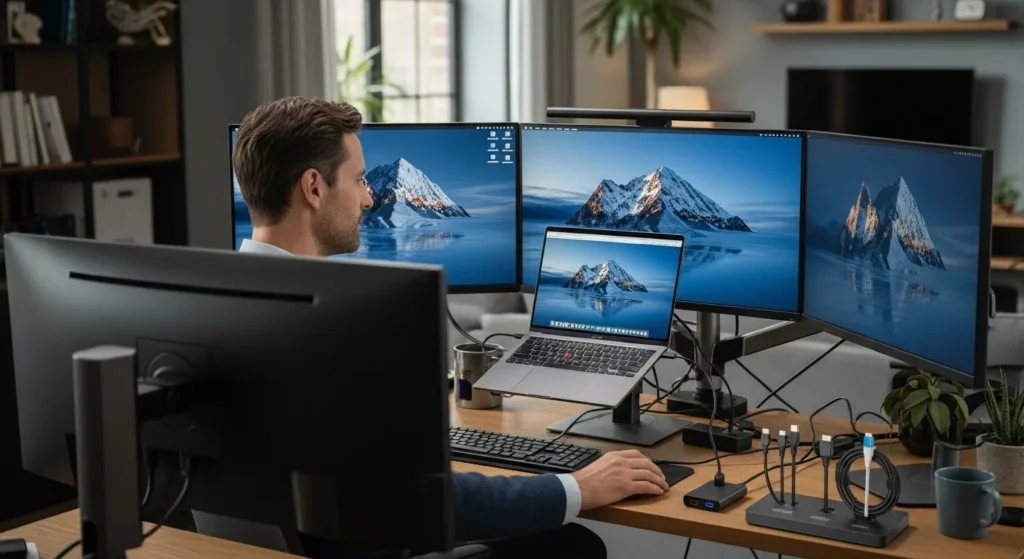
In today’s fast-paced digital world, maximizing productivity often means expanding your screen real estate. Whether you’re a professional multitasker, a creative designer, or a gamer seeking immersive experiences, learning how to connect multiple monitors to a laptop can transform your workflow. This gadgets & gear guide dives into the essentials, from hardware requirements to software configurations, ensuring you harness the full potential of your setup. With advancements in technology, such as the integration of AI agent voice search optimization and cloud solutions, connecting monitors has become more seamless than ever. By the end of this article, you’ll be equipped to create a powerful multi-monitor station that enhances efficiency and elevates your tech game.
To connect multiple monitors to a laptop, check your laptop’s ports (e.g., HDMI, DisplayPort, USB-C), use adapters or docking stations if needed, configure settings in your operating system (Windows, macOS, or Linux), and ensure your graphics card supports multiple displays. Common methods include daisy-chaining, using a docking station, or leveraging USB adapters for extra connectivity.
Understanding Your Laptop’s Connectivity Options
Before diving into the setup, it’s crucial to assess your laptop’s ports and capabilities. Modern laptops come with various output options, each suited for different gadgets & gear setups. Here’s a breakdown of common ports and their uses:
- HDMI: Widely used for high-definition video and audio; supports up to 4K resolution.
- DisplayPort: Offers higher bandwidth than HDMI, ideal for gaming or professional work; supports daisy-chaining multiple monitors.
- USB-C/Thunderbolt: Versatile ports that can carry video, data, and power; Thunderbolt 3/4 supports multiple 4K displays.
- VGA/DVI: Older analog ports; may require adapters for modern monitors.
If your laptop lacks sufficient ports, consider investing in a docking station or USB adapters. For instance, exploring how to connect 3 monitors to a laptop can provide advanced tips for complex setups. Additionally, ensure your graphics card (integrated or dedicated) supports multiple displays; most modern GPUs handle 2-3 monitors, but check specifications for limits.
Step-by-Step Guide to Connecting Multiple Monitors
Setting up multiple monitors involves both hardware connections and software configurations. Follow this numbered guide for a smooth process:
- Gather Your Gear: Collect monitors, cables (e.g., HDMI, DisplayPort), and any adapters or docking stations. Ensure compatibility with your laptop’s ports.
- Connect the Monitors: Plug the first monitor into your laptop’s primary port (e.g., HDMI). For additional monitors, use available ports or a docking station. If using daisy-chaining with DisplayPort, connect monitors in sequence.
- Power On and Detect: Turn on your laptop and monitors. Access display settings (e.g., right-click desktop on Windows, go to System Preferences > Displays on macOS) to detect connected monitors.
- Configure Display Settings: Arrange monitors virtually to match their physical placement. Choose between extended, duplicate, or primary/secondary display modes based on your needs.
- Adjust Resolution and Orientation: Set optimal resolution for each monitor (e.g., 1920×1080) and adjust orientation (landscape or portrait) for ergonomics.
For troubleshooting, ensure drivers are updated, especially for graphics cards. If issues persist, consult resources on cloud security tools for AI phishing protection to safeguard your setup from digital threats. This process not only boosts productivity but also integrates well with modern tech trends, such as using AI agents for SEO strategy to manage multiple screens efficiently.
Essential Gadgets & Gear for Multi-Monitor Setups
To enhance your multi-monitor experience, investing in the right accessories is key. Here’s a list of must-have gadgets & gear:
- Docking Stations: Provide extra ports and simplify connections; ideal for laptops with limited outputs.
- Monitor Arms: Save desk space and allow flexible positioning; ergonomic for long work sessions.
- High-Quality Cables: Use certified HDMI 2.1 or DisplayPort 1.4 cables for best performance.
- USB Hubs: Expand USB ports for peripherals like keyboards, mice, and external drives.
- Graphics Adapters: Convert signals between port types (e.g., USB-C to HDMI) for compatibility.
When selecting gear, consider future-proofing your setup. For example, as agentic AI in cybersecurity evolves, having a secure and reliable multi-monitor system can aid in monitoring threats across screens. Additionally, pairing this with tools from a best HVAC SEO digital agency can optimize digital workflows for businesses.
Comparing Connection Methods for Multiple Monitors
Different methods suit various needs and budgets. Use this table to compare options:
| Method | Pros | Cons | Best For |
|---|---|---|---|
| Docking Station | Simplifies connections, adds ports, supports charging | Can be expensive, may require specific laptop compatibility | Professionals with limited laptop ports |
| USB Adapters | Affordable, portable, easy to use | Lower bandwidth, may not support high resolutions | Casual users needing extra displays |
| Daisy-Chaining | Reduces cable clutter, uses single port | Requires DisplayPort and compatible monitors | Gamers and creatives with high-end gear |
| Wireless Solutions | No cables, flexible placement | Latency issues, dependent on Wi-Fi strength | Minimalist setups or presentations |
Choose based on your specific gadgets & gear requirements. For instance, if you’re managing fintech tasks, integrating Argentina fintech news regulation updates across monitors might benefit from a docking station for stability.
Optimizing Your Multi-Monitor Workflow
Once connected, optimize your setup for maximum productivity. Here are key tips:
- Use Taskbar and Window Management Tools: Extend the taskbar across monitors on Windows or use third-party apps like DisplayFusion for advanced controls.
- Calibrate Colors and Brightness: Ensure consistency across monitors for design or video editing work.
- Implement Security Measures: Protect sensitive data with screen privacy filters and secure connections, akin to practices in cloud security for law firms.
- Regular Maintenance: Update drivers and clean cables to prevent connectivity issues.
By following these steps, you’ll create an efficient gadgets & gear ecosystem. This setup not only enhances personal productivity but also aligns with trends like using AI voice agents for telecom providers to manage communications across multiple screens.
Frequently Asked Questions (FAQs)
How many monitors can I connect to my laptop?
It depends on your laptop’s graphics card and ports. Most modern laptops support 2-3 external monitors, but high-end models with Thunderbolt or dedicated GPUs can handle 4 or more. Check your specifications or consult the manufacturer’s guidelines.
Do I need a special graphics card for multiple monitors?
Not necessarily. Integrated graphics (like Intel UHD) often support 2-3 monitors, but for gaming or 4K displays, a dedicated GPU (e.g., NVIDIA or AMD) is recommended. Ensure your card has enough output ports or use adapters.
Can I connect monitors wirelessly?
Yes, using technologies like Miracast or wireless docking stations. However, wireless connections may have latency and quality issues compared to wired options, so they’re best for casual use.
What if my laptop doesn’t have enough ports?
Use a docking station or USB adapters to expand connectivity. For example, a USB-C hub can add HDMI, DisplayPort, and other ports, making it easy to connect multiple monitors without hardware upgrades.
How do I arrange monitors in display settings?
In Windows, go to Settings > System > Display and drag the monitor icons to match their physical layout. On macOS, use System Preferences > Displays > Arrangement. This ensures smooth cursor movement across screens.
Will connecting multiple monitors slow down my laptop?
It can impact performance if your graphics card is underpowered or if you’re running resource-intensive tasks. To mitigate this, close unnecessary applications and consider upgrading your hardware if needed.
Can I use different monitor brands and sizes together?
Yes, but for a seamless experience, try to match resolutions and refresh rates. Differences may cause alignment issues, but display settings allow individual adjustments to minimize distractions.
Is it safe to daisy-chain monitors?
Yes, if using DisplayPort 1.2 or higher and compatible monitors. Ensure each monitor supports daisy-chaining and use certified cables to avoid signal degradation.