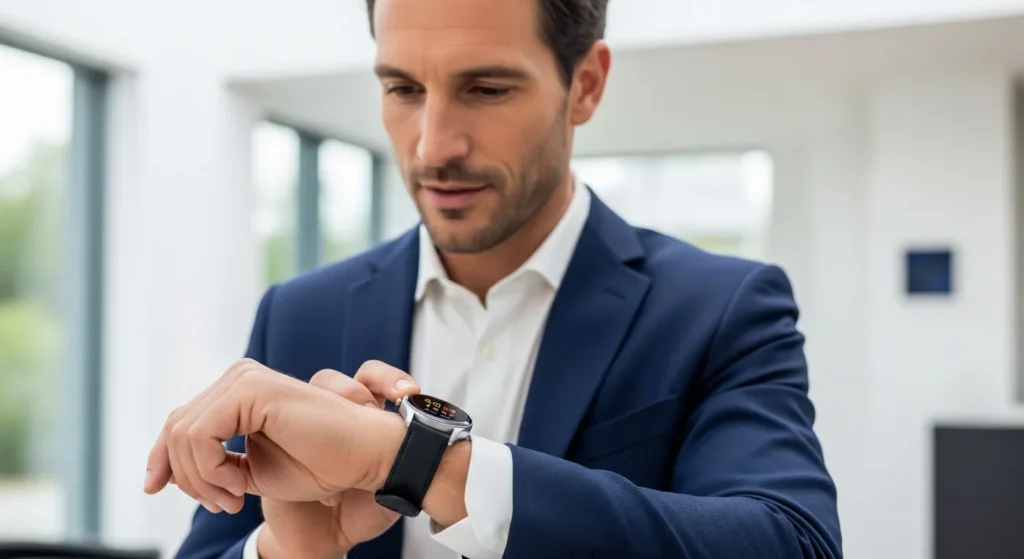
In the ever-evolving world of gadgets & gear, smartwatches have become indispensable companions for iPhone users, blending style with functionality to enhance daily life. Whether you’re tracking fitness goals, managing notifications, or staying connected on the go, the right iPhone-compatible smartwatch can transform how you interact with technology. This comprehensive guide will walk you through everything you need to know about using the best iPhone compatible smartwatch, from setup and pairing to advanced features and troubleshooting. By the end, you’ll be equipped to maximize your device’s potential, ensuring it becomes a seamless part of your gadgets & gear arsenal. Let’s dive into the essentials of smartwatch usage for iPhone enthusiasts.
To use the best iPhone compatible smartwatch, start by pairing it with your iPhone via Bluetooth using the companion app (e.g., Apple Watch app or manufacturer’s app). Ensure both devices are updated, then follow on-screen instructions to sync data, customize watch faces, and enable features like notifications, fitness tracking, and payments. Regularly charge the watch and explore settings to optimize battery life and performance for seamless integration with your gadgets & gear.
Setting Up Your iPhone Compatible Smartwatch
Before you can enjoy the full benefits of your smartwatch, proper setup is crucial. This process ensures seamless integration with your iPhone, allowing for smooth data syncing and feature access. Start by charging your smartwatch to at least 50% battery to avoid interruptions during setup. Next, download the companion app from the App Store—for Apple Watch, use the Apple Watch app, while other brands like Garmin or Fitbit have their own apps. Turn on Bluetooth on your iPhone and place the devices close together. Open the app and follow the on-screen prompts to pair the watch, which may involve scanning a QR code or entering a code displayed on the watch. Once paired, customize settings such as language, wrist orientation, and passcode for security. This initial step lays the foundation for a hassle-free experience with your gadgets & gear, much like how syncing contacts to a smartwatch enhances connectivity across devices.
Essential Features to Master
Once set up, exploring key features will help you get the most out of your smartwatch. Focus on these core functionalities to boost your productivity and health tracking.
- Notifications and Alerts: Customize which apps send notifications to your watch via the companion app. This keeps you informed without constantly checking your iPhone.
- Fitness and Health Tracking: Use built-in sensors to monitor heart rate, steps, sleep, and workouts. Set goals and review data in the app to stay motivated.
- Voice Commands and Siri: Activate Siri by pressing the side button or using voice prompts for hands-free tasks like sending messages or setting reminders.
- Mobile Payments: Set up Apple Pay or other payment services for quick, secure transactions directly from your wrist.
- Music and Media Control: Sync playlists or use streaming apps to control music playback during workouts or commutes.
Mastering these features transforms your smartwatch into a powerful tool in your gadgets & gear collection, similar to optimizing laptop sleep settings for better efficiency.
Customizing Watch Faces and Apps
Personalization is key to making your smartwatch feel uniquely yours. Start by exploring watch face options in the companion app—choose from analog, digital, or interactive faces that display complications like weather, calendar events, or fitness stats. Swipe or press on the watch face to edit and add widgets for quick access to frequently used apps. For third-party apps, browse the App Store on your iPhone and install compatible versions, then organize them on the watch using the app layout editor. Consider creating multiple watch faces for different scenarios, such as a minimalist face for work and a data-rich one for workouts. This level of customization enhances usability, much like tailoring screen recording settings on a laptop to suit specific needs.
Battery Life Optimization Tips
Maximizing battery life ensures your smartwatch stays powered throughout the day. Implement these strategies to extend usage between charges.
- Adjust Screen Brightness: Lower the brightness or enable auto-brightness in settings to reduce power consumption.
- Manage Notifications: Limit non-essential alerts to minimize screen wake-ups and background activity.
- Use Power-Saving Modes: Activate built-in modes during low-activity periods, such as sleep or extended workouts.
- Disable Unused Features: Turn off GPS, always-on display, or background app refresh when not needed.
- Regular Updates: Keep the watch and companion app updated to benefit from battery efficiency improvements.
By following these tips, you can enjoy longer battery life, making your smartwatch a reliable part of your gadgets & gear without constant recharging, akin to managing laptop charging issues for uninterrupted use.
Comparing Top iPhone Compatible Smartwatches
Choosing the right smartwatch depends on your needs and budget. Here’s a comparison table of popular models to help you decide.
| Model | Key Features | Battery Life | Price Range |
|---|---|---|---|
| Apple Watch Series 9 | Advanced health sensors, Siri, seamless iOS integration | 18 hours | $399-$799 |
| Garmin Venu 3 | GPS fitness tracking, music storage, sleep coaching | Up to 14 days | $449-$499 |
| Fitbit Sense 2 | Stress management, EDA scan, Google integration | 6+ days | $299-$349 |
| Samsung Galaxy Watch 6 | Rotating bezel, body composition analysis, LTE options | 40 hours | $299-$429 |
This comparison highlights options for various lifestyles, from fitness enthusiasts to productivity seekers, ensuring you pick the best fit for your gadgets & gear setup.
Troubleshooting Common Issues
Even the best gadgets & gear can encounter problems. Here are solutions to frequent smartwatch issues.
- Connection Drops: Restart both devices, ensure Bluetooth is on, and re-pair if necessary. Check for interference from other electronics.
- Syncing Errors: Update the companion app and watch software, then force a sync in the app settings.
- Battery Drain: Review recent app installations or settings changes that might increase power usage, and reset to defaults if needed.
- Unresponsive Touchscreen: Clean the screen, restart the watch, or perform a factory reset as a last resort.
- Payment Failures: Verify card details in the payment app and ensure the watch is unlocked during transactions.
Addressing these issues promptly keeps your smartwatch running smoothly, much like solving common laptop sound problems for optimal performance.
Advanced Usage for Power Users
For those looking to push their smartwatch further, explore these advanced features to enhance your gadgets & gear experience.
- Automation with Shortcuts: Use the Shortcuts app on iPhone to create automations triggered by watch actions, like starting a workout when you leave home.
- Third-Party Integrations: Connect to apps like Strava for fitness or Todoist for task management, syncing data across platforms.
- Custom Complications: Develop or download custom watch face complications for niche data, such as stock prices or air quality indexes.
- Offline Maps: Download maps for hiking or travel to use GPS navigation without an iPhone connection.
- Voice Memos and Dictation: Record notes or transcribe speech directly on the watch for quick idea capture.
Embracing these advanced options can turn your smartwatch into a powerhouse tool, similar to leveraging multiple monitor setups for laptops for enhanced productivity.
FAQs: People Also Ask
What is the best iPhone compatible smartwatch for fitness?
The Apple Watch Series 9 and Garmin Venu 3 are top choices for fitness, offering comprehensive health tracking, GPS, and workout analytics. Consider your budget and specific features like sleep coaching or stress management when deciding.
How do I pair a non-Apple smartwatch with my iPhone?
Download the manufacturer’s app from the App Store, enable Bluetooth on your iPhone, and follow the in-app pairing instructions. Ensure both devices are updated for compatibility.
Can I use my smartwatch without my iPhone nearby?
Yes, if your smartwatch has LTE or Wi-Fi connectivity, you can make calls, send messages, and use apps independently. Otherwise, basic functions like fitness tracking may work, but notifications require a Bluetooth connection.
How often should I charge my smartwatch?
Most smartwatches need daily charging, but models like Garmin can last up to two weeks. Charge when battery drops below 20% to maintain battery health, and avoid overcharging overnight.
Are iPhone compatible smartwatches waterproof?
Many are water-resistant for swimming and showers, but check the IP rating (e.g., IP68 or 5 ATM) in the specifications. Avoid exposing them to high-pressure water or corrosive substances.
Can I customize notifications on my smartwatch?
Yes, use the companion app to select which apps send alerts to your watch. You can also set Do Not Disturb modes or prioritize contacts for tailored notification management.
What should I do if my smartwatch won’t turn on?
Charge it for at least 30 minutes, then try a force restart by holding the side button. If issues persist, contact support or refer to the troubleshooting section in this guide.
Is it worth upgrading to a newer smartwatch model?
Upgrade if you need new features like improved sensors, faster processors, or better battery life. For basic functions, older models may suffice, so assess your gadgets & gear needs before investing.