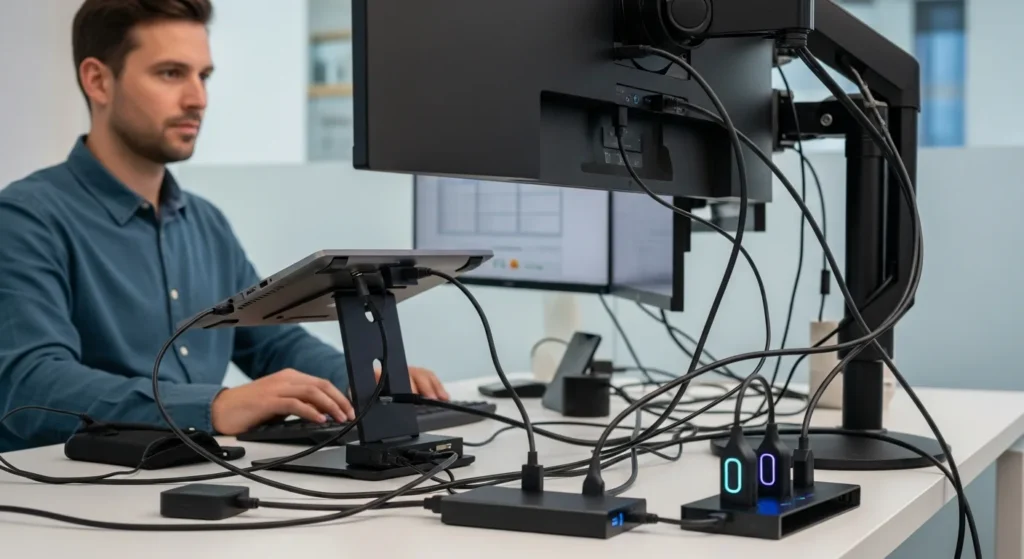
In today’s fast-paced digital world, maximizing productivity often means expanding your screen real estate. Whether you’re a professional multitasker, a creative designer, or a gamer seeking immersive experiences, connecting three monitors to a laptop can transform your workflow. This gadgets & gear guide will walk you through everything you need to know, from hardware requirements to step-by-step setup, ensuring you harness the full potential of a multi-display setup. With the right tools and knowledge, you can boost efficiency and enjoy a seamless computing experience.
To connect 3 monitors to a laptop, you typically need a laptop with sufficient ports (like HDMI, DisplayPort, or USB-C), a docking station or adapters, and compatible monitors. Check your laptop’s graphics capabilities, use a docking station for easier connectivity, and configure displays in your operating system’s settings. Common methods include using a USB-C dock with multiple outputs or daisy-chaining via DisplayPort.
Understanding Your Laptop’s Hardware Capabilities
Before diving into the setup, it’s crucial to assess your laptop’s hardware. Not all laptops support three external monitors, as this depends on the graphics card and available ports. Most modern laptops come with integrated or dedicated GPUs that can handle multiple displays, but older models might have limitations. Check your laptop’s specifications or manufacturer’s website to confirm support for multi-monitor setups. Key ports to look for include HDMI, DisplayPort, USB-C with DisplayPort Alt Mode, and Thunderbolt. For instance, many business laptops and high-end models are designed with gadgets & gear in mind, offering robust connectivity options. If your laptop lacks enough ports, don’t worry—adapters and docking stations can bridge the gap, as discussed in later sections.
Essential Gadgets & Gear for Connecting 3 Monitors
To successfully connect three monitors, you’ll need the right gadgets & gear. Here’s a list of essential items:
- Monitors: Ensure they have compatible inputs (e.g., HDMI, DisplayPort, VGA).
- Docking Station: A hub that expands your laptop’s ports, often supporting multiple displays via USB-C or Thunderbolt.
- Adapters and Cables: Such as HDMI to DisplayPort adapters or USB-C to HDMI cables.
- Graphics Card: Verify your laptop’s GPU can handle three monitors; some may require an external GPU (eGPU).
- Power Supply: Ensure your laptop and docking station have adequate power for all connected devices.
Investing in quality gadgets & gear, like a reliable docking station, can simplify the process and enhance performance. For example, a USB-C dock with multiple video outputs is a popular choice for modern laptops, offering seamless connectivity without cluttering your desk.
Step-by-Step Guide to Connect 3 Monitors
Follow these steps to set up your three-monitor configuration:
- Check Compatibility: Review your laptop’s specs and monitor inputs to ensure they match.
- Gather Equipment: Collect all necessary cables, adapters, and a docking station if needed.
- Connect Monitors: Plug each monitor into your laptop or docking station using the appropriate cables.
- Power On: Turn on your laptop and all monitors to detect the displays.
- Configure Settings: Go to your operating system’s display settings (e.g., Windows Display Settings or macOS System Preferences) to arrange and extend displays.
- Test Setup: Drag windows across screens to ensure smooth functionality and adjust resolution if necessary.
This process may vary slightly based on your gadgets & gear, but these general steps apply to most setups. For advanced configurations, consider using daisy-chaining with DisplayPort monitors or an external GPU for better graphics performance.
Comparison of Connection Methods
Different methods offer varying benefits for connecting three monitors. Here’s a comparison table to help you choose:
| Method | Pros | Cons | Best For |
|---|---|---|---|
| Docking Station | Simplifies connectivity, reduces cable clutter, often includes extra ports | Can be expensive, may require specific laptop compatibility | Professionals and frequent users |
| Adapters and Splitters | Cost-effective, flexible for various port types | May reduce display quality or resolution, can be messy | Budget-conscious users or temporary setups |
| Daisy-Chaining | Uses fewer cables, efficient for DisplayPort monitors | Requires monitors with DisplayPort 1.2 or later, limited to specific setups | Users with compatible monitors seeking a clean look |
| External GPU (eGPU) | Enhances graphics performance, supports high-resolution displays | Expensive, bulky, needs Thunderbolt 3/4 port | Gamers and creative professionals |
Choosing the right method depends on your gadgets & gear and usage needs. For instance, if you prioritize a tidy workspace, a docking station might be ideal, while daisy-chaining suits those with modern monitors.
Common Troubleshooting Tips
If you encounter issues while connecting three monitors, try these troubleshooting steps:
- Update Drivers: Ensure your graphics card drivers are up-to-date for optimal performance.
- Check Cable Connections: Loose or faulty cables can cause display problems; reseat them securely.
- Adjust Display Settings: In your OS settings, verify that all monitors are detected and set to extend mode.
- Reduce Resolution: Lowering the resolution on one or more monitors can help if your GPU is overloaded.
- Restart Devices: A simple reboot of your laptop and monitors can resolve detection issues.
For more advanced troubleshooting, refer to your laptop’s manual or seek online forums. Remember, using reliable gadgets & gear, like high-quality cables, can prevent many common problems.
Optimizing Your Multi-Monitor Setup
Once connected, optimize your setup for productivity and comfort. Consider these tips:
- Arrange Monitors Ergonomically: Position them at eye level to reduce strain, using stands or mounts if needed.
- Customize Display Settings: Set primary displays for taskbars and adjust scaling for consistency across screens.
- Use Productivity Software: Tools like window managers can help organize applications across multiple monitors.
- Manage Power Settings: Ensure your laptop’s power plan supports multiple displays without performance drops.
- Regular Maintenance: Keep drivers updated and clean your gadgets & gear to maintain longevity.
By optimizing your setup, you can enhance both efficiency and user experience. For insights into future trends in gadgets & gear, such as evolving display technologies, check out our article on The Future of Kawaiicore Cutecore Wallpaper Laptop.
FAQs About Connecting 3 Monitors to a Laptop
Can any laptop connect to 3 monitors?
Not all laptops can connect to 3 monitors; it depends on the graphics card and available ports. Most modern laptops with dedicated GPUs or specific integrated graphics support multi-display setups, but older or budget models may have limitations. Check your laptop’s specs or use a docking station to expand connectivity.
What is the easiest way to connect 3 monitors?
The easiest way is often using a docking station with multiple video outputs, such as a USB-C or Thunderbolt dock. This reduces cable clutter and simplifies the setup process, making it ideal for users who frequently switch between gadgets & gear.
Do I need special software to use 3 monitors?
No, special software is usually not required. Most operating systems like Windows, macOS, and Linux have built-in display settings to configure multiple monitors. However, you might need updated graphics drivers or third-party tools for advanced features.
Will connecting 3 monitors slow down my laptop?
It can, depending on your laptop’s hardware. Running multiple displays increases the load on the graphics card and CPU, potentially slowing performance, especially with high-resolution monitors. To mitigate this, ensure your laptop has a capable GPU and consider using an external GPU for demanding tasks.
Can I use different brands of monitors together?
Yes, you can use different brands of monitors together, as long as they have compatible inputs and resolutions. However, for a seamless experience, try to match resolutions and refresh rates to avoid visual inconsistencies. This flexibility is a key advantage of modern gadgets & gear.
What should I do if one monitor isn’t detected?
If a monitor isn’t detected, check cable connections, update graphics drivers, and restart your laptop. Also, verify the monitor is powered on and set to the correct input source. For persistent issues, test with a different cable or port to isolate the problem.
Is it possible to connect 3 monitors wirelessly?
Yes, it’s possible using wireless display technologies like Miracast or Apple AirPlay, but this method is less common and may have latency or quality issues. For reliable performance, wired connections are generally recommended when connecting multiple monitors as part of your gadgets & gear setup.
How much does it cost to connect 3 monitors to a laptop?
Costs vary based on the gadgets & gear needed. A basic setup with adapters might cost $50-$100, while a high-end docking station or eGPU can range from $200 to $500 or more. Monitors are additional, with prices depending on size and features. Budget accordingly based on your needs.