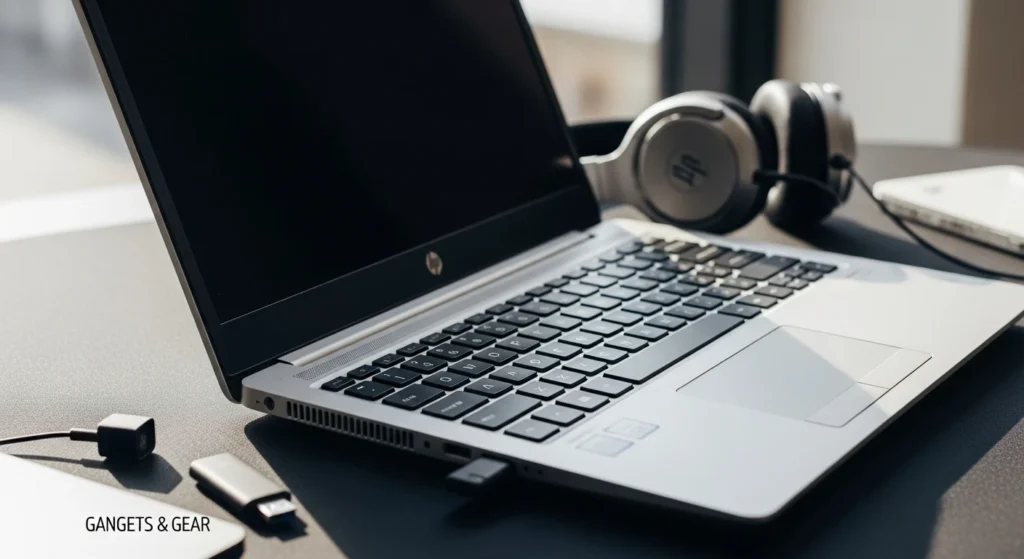
Experiencing sound issues on your HP laptop can be frustrating, whether you’re trying to watch videos, join meetings, or enjoy music. As a key component of your gadgets & gear setup, audio functionality is essential for productivity and entertainment. In this comprehensive guide, we’ll explore the most common HP sound not working laptop problems and provide step-by-step solutions to get your audio back on track. From software glitches to hardware failures, understanding these issues can save you time and money, ensuring your device performs optimally. For more insights into laptop maintenance, check out our guide on laptop charging but not turning on.
To fix HP laptop sound issues, first check volume settings and restart your device. Update audio drivers via Device Manager, run the Windows Audio Troubleshooter, and ensure no external devices are connected. If problems persist, inspect hardware like speakers or audio jacks, and consider system restore or professional repair.
Understanding HP Laptop Sound Problems
HP laptops, like other gadgets & gear, can encounter various audio issues due to software conflicts, driver errors, or physical damage. Common symptoms include no sound, distorted audio, intermittent cutting out, or sound only through headphones. Identifying the root cause is the first step toward a solution. Often, these problems arise from outdated drivers, incorrect settings, or recent system updates. By systematically troubleshooting, you can resolve most issues without needing expert help. For related hardware concerns, see our article on laptop cracked screen importance.
Software Solutions for HP Sound Issues
Software-related problems are frequent causes of sound failures in HP laptops. Here are key steps to address them:
- Check Volume and Mute Settings: Ensure your laptop isn’t muted and volume is turned up in Windows and application settings.
- Update Audio Drivers: Outdated or corrupted drivers can disrupt sound. Visit HP’s support site or use Device Manager to install the latest versions.
- Run Windows Audio Troubleshooter: This built-in tool can automatically detect and fix common audio problems.
- Disable Audio Enhancements: Sometimes, enhancements cause conflicts; disable them in sound properties.
- Check for Windows Updates: System updates may include fixes for audio bugs affecting your gadgets & gear.
If software fixes don’t work, consider hardware checks. For more on optimizing laptop performance, explore how to make my laptop not go to sleep.
Hardware Troubleshooting Steps
Hardware issues require physical inspection and testing. Follow these steps:
- Test with Headphones: Plug in headphones to see if sound works externally, indicating internal speaker problems.
- Inspect Audio Jacks: Look for debris or damage in headphone and microphone ports that could affect connections.
- Check Speaker Connections: For advanced users, open the laptop (if under warranty, consult HP support) to ensure speakers are properly connected.
- External Speaker Test: Connect external speakers via USB or audio jack to determine if the issue is with the laptop’s built-in speakers.
- BIOS Check: Access BIOS settings to ensure audio hardware is enabled and functioning correctly.
Hardware problems might necessitate professional repair. For insights into other laptop features, read about HP Envy laptop touch screen functionality.
Common HP Laptop Models and Sound Issues
Different HP models may have specific audio quirks. Here’s a comparison of common issues:
| HP Model | Common Sound Problem | Recommended Solution |
|---|---|---|
| HP Pavilion | Driver conflicts after updates | Roll back to previous driver version |
| HP Envy | No sound from built-in speakers | Check audio services in Windows |
| HP Spectre | Distorted audio at high volumes | Disable audio enhancements |
| HP Omen | Sound cutting out during gaming | Update gaming audio drivers |
Understanding your model can streamline troubleshooting. For broader gadget tips, see our guide on best tech Christmas presents 2026.
Preventive Measures for Audio Health
To avoid future sound problems in your HP laptop, adopt these preventive practices:
- Regular Driver Updates: Keep audio drivers current to prevent compatibility issues with new software.
- System Maintenance: Clean your laptop regularly to prevent dust buildup in speakers and ports.
- Safe Usage: Avoid exposing your laptop to moisture or extreme temperatures that can damage audio components.
- Backup Settings: Create restore points before making major system changes to easily revert if problems arise.
- Use Quality Accessories: Opt for certified headphones and speakers to reduce strain on audio jacks.
Proactive care extends the life of your gadgets & gear. For more on laptop accessories, check out the future of laptop leather bags for men.
When to Seek Professional Help
If DIY solutions fail, it might be time for expert assistance. Consider professional repair if:
- Persistent No Sound: After trying all software and hardware fixes, sound still doesn’t work.
- Physical Damage: Visible cracks or water damage affecting audio components.
- Warranty Coverage: Your HP laptop is under warranty; contact HP support for free repairs.
- Complex Hardware Issues: Problems like motherboard failures require specialized tools and skills.
- Time Constraints: If you lack time to troubleshoot, a professional can provide quick solutions.
Investing in repair can be cost-effective compared to replacement. For related tech insights, explore common 32 gig memory laptop problems.
FAQs: HP Laptop Sound Problems
Why is there no sound on my HP laptop after a Windows update?
Windows updates can sometimes conflict with audio drivers, causing sound to stop. To fix this, roll back the update or reinstall the audio drivers from HP’s website. Running the Windows Audio Troubleshooter may also resolve the issue automatically.
How can I test if my HP laptop speakers are broken?
Connect headphones or external speakers to your laptop. If sound works through these devices, the built-in speakers might be damaged. You can also use the Windows sound test in settings to check speaker functionality.
What should I do if sound only works through headphones on my HP laptop?
This often indicates a setting or hardware issue with the internal speakers. Check sound settings to ensure output is set to speakers, not headphones. If that doesn’t work, inspect the audio jack for debris or damage.
Can outdated BIOS cause sound problems on an HP laptop?
Yes, an outdated BIOS can lead to audio issues by affecting hardware communication. Update your BIOS from HP’s official support page, but proceed cautiously as incorrect updates can cause system problems.
How do I update audio drivers on my HP laptop?
Go to Device Manager, find “Sound, video and game controllers,” right-click your audio device, and select “Update driver.” Choose automatic search or manually download the latest driver from HP’s website for your specific model.
Is it worth repairing sound issues on an old HP laptop?
It depends on the repair cost and laptop age. If the fix is inexpensive and the laptop otherwise functions well, repair can extend its life. For expensive repairs, consider upgrading to a new device as part of your gadgets & gear collection.
What are common signs of hardware failure in HP laptop audio?
Signs include no sound despite software fixes, physical damage to speakers or jacks, crackling noises, or sound only working intermittently. These may require component replacement or professional inspection.
How can I prevent sound problems on my HP laptop in the future?
Keep drivers updated, avoid installing unverified software, clean your laptop regularly, and use surge protectors to prevent electrical damage. Regular maintenance helps ensure long-term audio health for your gadgets & gear.