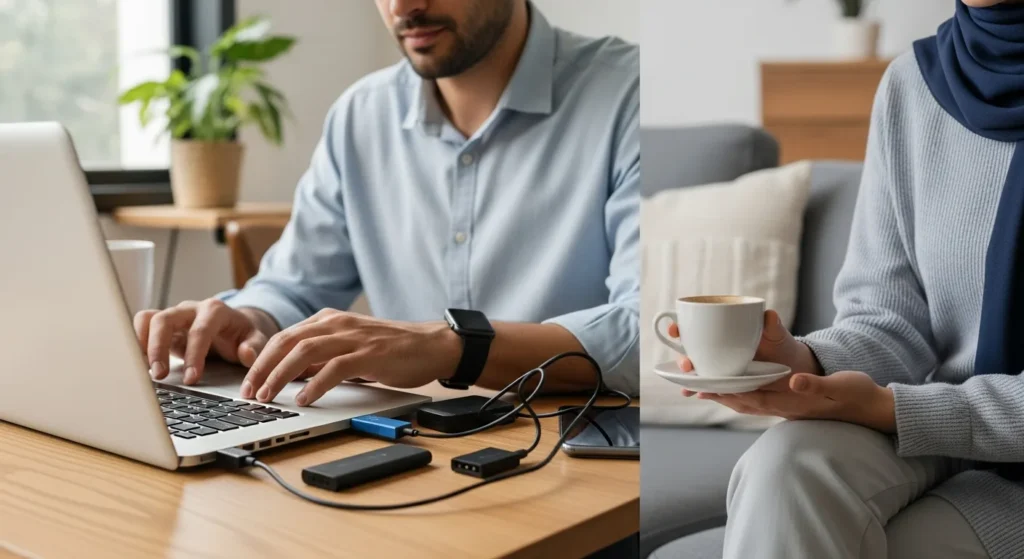
In today’s digital age, laptop USB ports have become the unsung heroes of connectivity, powering everything from external hard drives to gaming peripherals. As gadgets and gear evolve, the question arises: should you rely on these ports for your daily tech needs? This comprehensive guide dives deep into the world of laptop USB ports, exploring their benefits, limitations, and practical applications to help you make informed decisions about your gadgets and gear setup.
Yes, you should use laptop USB ports for most gadgets and gear, as they offer versatile connectivity for peripherals like external storage, keyboards, and charging devices. However, be mindful of compatibility issues, power limitations, and potential performance bottlenecks, especially with older USB 2.0 ports or high-demand gear like external GPUs. For optimal results, use USB 3.0+ ports and consider alternatives like docking stations for intensive setups.
Understanding Laptop USB Ports: Types and Capabilities
Laptop USB ports come in various generations, each with distinct features that impact your gadgets and gear. Knowing the differences is crucial for maximizing performance and avoiding compatibility headaches.
- USB 2.0: Offers speeds up to 480 Mbps, suitable for basic peripherals like mice and keyboards.
- USB 3.0/3.1: Provides speeds up to 5-10 Gbps, ideal for external hard drives and fast data transfer.
- USB-C: Features reversible design and supports power delivery, video output, and Thunderbolt 3 in some cases.
- USB 4: The latest standard, with speeds up to 40 Gbps and enhanced compatibility with modern gear.
When connecting gadgets and gear, always check port specifications to ensure they match your device’s requirements. For example, using a USB 3.0 external SSD on a USB 2.0 port will limit its speed, affecting performance for tasks like video editing or gaming. If you’re dealing with multiple monitors, our guide on how to connect multiple monitors to a laptop offers insights into leveraging USB-C or other ports for expanded displays.
Pros of Using Laptop USB Ports for Gadgets & Gear
Laptop USB ports offer numerous advantages that make them indispensable for tech enthusiasts and professionals alike. Here’s why they’re a go-to choice for connecting gadgets and gear.
- Versatility: USB ports support a wide range of devices, from storage drives to audio interfaces, reducing the need for specialized connectors.
- Plug-and-Play Convenience: Most USB devices are recognized automatically by your operating system, minimizing setup time.
- Power Delivery: Many USB ports can charge smartphones, tablets, and other small gadgets, eliminating extra chargers.
- Cost-Effectiveness: USB cables and adapters are generally affordable, making it easy to expand your gear collection.
For instance, if you’re using a HP Envy laptop touch screen, its USB ports can enhance functionality by connecting drawing tablets or external displays. Similarly, in business settings, USB ports facilitate connections to printers and scanners, streamlining workflows without hefty investments.
Cons and Limitations of Laptop USB Ports
Despite their benefits, laptop USB ports have drawbacks that can impact your gadgets and gear experience. Awareness of these issues helps in planning alternatives.
- Power Limitations: Standard USB ports may not provide enough power for high-demand gear like external GPUs or multiple hard drives.
- Compatibility Issues: Older USB versions may not work with newer devices, requiring adapters or upgrades.
- Port Availability: Many laptops have limited USB ports, forcing users to rely on hubs that can reduce performance.
- Data Transfer Bottlenecks: Slower USB ports can hinder tasks like backing up large files or streaming high-resolution video.
If you encounter problems like a HP sound not working laptop issue, it might stem from USB audio device conflicts. In such cases, troubleshooting port settings or updating drivers is essential. For more complex setups, consider exploring how to connect multiple screens to a laptop using dedicated video ports to avoid USB bandwidth issues.
Comparing USB Ports with Alternatives for Gadgets & Gear
When deciding whether to use laptop USB ports, it’s helpful to compare them with other connectivity options. This table outlines key differences to guide your choice.
| Feature | USB Ports | Thunderbolt | HDMI/DisplayPort | Docking Stations |
|---|---|---|---|---|
| Speed | Up to 40 Gbps (USB4) | Up to 40 Gbps | Video-focused | Varies by model |
| Power Delivery | Yes (up to 100W) | Yes (up to 100W) | No | Yes (integrated) |
| Device Support | Wide range | High-performance gear | Monitors, TVs | Multiple ports |
| Cost | Low | High | Moderate | High |
For example, if you need to connect a monitor, using an HDMI cable for monitor to laptop might offer better video quality than USB adapters. However, for general gadgets and gear, USB ports often strike a balance between affordability and functionality.
Best Practices for Using Laptop USB Ports
To maximize the benefits of laptop USB ports while minimizing drawbacks, follow these best practices tailored for gadgets and gear enthusiasts.
- Prioritize USB 3.0+ Ports: Use newer ports for faster data transfer and better power delivery, especially with SSDs or external drives.
- Use Powered Hubs for Multiple Devices: Avoid overloading ports by connecting hubs with external power sources to maintain performance.
- Update Drivers Regularly: Ensure your laptop’s USB drivers are up-to-date to prevent compatibility issues with new gear.
- Monitor Power Usage: Check device power requirements to avoid draining your laptop’s battery or causing port failures.
If you’re dealing with a laptop not going to sleep issue, it could be due to USB devices keeping the system active. Adjust power settings to manage this. For creative professionals, tools like screen recording on HP laptop software may benefit from USB-connected capture cards for higher quality.
Future Trends in USB Technology for Gadgets & Gear
As technology advances, USB ports continue to evolve, shaping how we interact with gadgets and gear. Staying informed about these trends can help future-proof your setup.
- USB4 Adoption: With speeds rivaling Thunderbolt, USB4 is becoming standard in new laptops, enhancing connectivity for high-end gear.
- Wireless USB Alternatives: Technologies like Wi-Fi 6 and Bluetooth 5.0 are reducing reliance on physical ports for some devices.
- Eco-Friendly Designs: Manufacturers are focusing on durable, recyclable USB components to support sustainable gadgets and gear.
- Integration with AI: Future USB ports may include smart features for automatic device optimization and power management.
In the realm of HR tech stack developments, USB ports could facilitate secure data transfers for employee devices. Similarly, as workflow AI generators become more prevalent, USB connectivity will play a role in integrating hardware sensors and tools.
FAQs About Laptop USB Ports and Gadgets & Gear
Can I use laptop USB ports to charge all my gadgets?
Most laptop USB ports can charge smartphones, tablets, and small electronics, but high-power devices like laptops themselves may require USB-C with Power Delivery. Always check your gadget’s power requirements to avoid slow charging or damage.
How many USB devices can I connect to my laptop at once?
You can connect multiple devices using a USB hub, but performance may degrade if the hub isn’t powered or if you exceed the laptop’s total power output. For intensive setups, limit connections to essential gadgets and gear.
Are USB ports on all laptops the same?
No, USB ports vary by generation (e.g., USB 2.0 vs. USB4) and type (e.g., USB-A vs. USB-C). Check your laptop’s specifications to understand its capabilities for connecting gadgets and gear.
Can USB ports transfer data and video simultaneously?
Yes, especially with USB-C or USB4 ports that support Alt Mode for video output. However, for best video quality, dedicated ports like HDMI are often preferable for monitors.
Do USB ports affect laptop battery life?
Yes, connecting power-hungry gadgets and gear can drain your laptop’s battery faster. Use powered hubs or charge devices when the laptop is plugged in to conserve battery life.
How do I troubleshoot a malfunctioning USB port?
Start by checking for physical damage, updating drivers, and testing with different devices. If issues persist, consult a professional, as it could relate to internal hardware problems.
Are USB ports secure for data transfer?
USB ports are generally secure, but avoid using unknown devices to prevent malware. For sensitive data, use encrypted drives and keep your antivirus software updated.
What’s the future of USB ports in laptops?
USB ports are evolving towards faster speeds (e.g., USB4), universal compatibility (e.g., USB-C), and integration with wireless technologies, ensuring they remain vital for gadgets and gear connectivity.