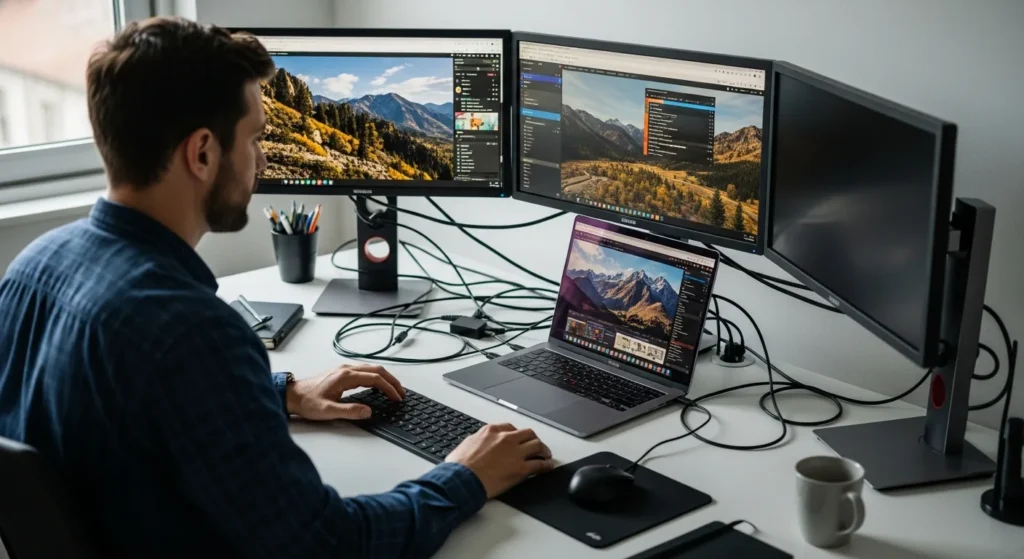
In today’s fast-paced digital world, maximizing productivity often means expanding your workspace beyond a single laptop screen. Whether you’re a professional multitasker, a creative designer, or a gamer seeking immersive experiences, connecting multiple screens to your laptop can revolutionize how you work and play. This comprehensive gadgets & gear guide will walk you through everything you need to know about setting up a multi-monitor setup, from the essential hardware to advanced configuration tips. By the end, you’ll be equipped to transform your laptop into a powerful multi-screen workstation that enhances efficiency and enjoyment.
To connect multiple screens to a laptop, you typically need compatible ports (like HDMI, DisplayPort, or USB-C), appropriate cables or adapters, and sometimes a docking station. Enable the setup through your operating system’s display settings, choosing between extended, duplicate, or custom arrangements. For more than two screens, consider using a multi-stream transport (MST) hub or a dedicated graphics card via an external GPU. Always check your laptop’s specifications and update drivers for optimal performance.
Essential Gadgets & Gear for Multi-Screen Setups
Before diving into the connection process, it’s crucial to gather the right gadgets & gear. Your laptop’s available ports will dictate what you need. Most modern laptops come with HDMI, DisplayPort, or USB-C ports that support video output. For older models, you might require adapters like VGA-to-HDMI or DVI-to-DisplayPort. A docking station can simplify connections by providing multiple ports in one hub, especially useful for laptops with limited built-in options. Additionally, investing in high-quality cables ensures stable signals and reduces flickering or lag. If you’re planning to connect more than two monitors, consider a multi-stream transport (MST) hub, which allows daisy-chaining displays through a single port. For those into gaming or graphic-intensive tasks, an external GPU might be necessary to handle the extra load without compromising performance. Remember, the right gear not only makes setup easier but also enhances your overall experience, much like how choosing the correct HDMI cable can impact monitor-to-laptop connections.
Step-by-Step Guide to Connecting Multiple Screens
Connecting multiple screens involves both hardware setup and software configuration. Follow these steps for a smooth process:
- Check Your Laptop’s Ports: Identify available video outputs (e.g., HDMI, DisplayPort, USB-C). Refer to your laptop’s manual if unsure.
- Gather Necessary Cables and Adapters: Based on your ports and monitor inputs, select compatible cables. For example, use an HDMI cable for HDMI ports or a USB-C to DisplayPort adapter if needed.
- Connect the Monitors: Plug one end of each cable into your laptop’s ports and the other into the monitors. Power on all devices.
- Configure Display Settings: On Windows, right-click the desktop and select “Display settings.” On macOS, go to “System Preferences” > “Displays.” Here, you can arrange screens, set resolutions, and choose between extended or mirrored modes.
- Test and Adjust: Ensure all screens are detected and functioning. Adjust orientation or scaling as needed for a seamless workflow.
For more detailed instructions on specific setups, such as connecting three monitors, refer to our guide on how to connect 3 monitors to a laptop.
Comparison of Connection Methods
Different connection methods offer varying benefits depending on your needs. Below is a table comparing common options:
| Method | Best For | Pros | Cons |
|---|---|---|---|
| HDMI | General use, gaming | Widely available, supports audio | Limited to one screen per port typically |
| DisplayPort | High-resolution displays, daisy-chaining | Supports multiple screens via MST, high bandwidth | Less common on some laptops |
| USB-C with DisplayPort Alt Mode | Modern laptops, simplicity | Single cable for power and video, versatile | May require adapters for older monitors |
| Docking Station | Office setups, multiple peripherals | Centralized connections, extra USB ports | Can be expensive |
Common Issues and Troubleshooting Tips
Even with the right gadgets & gear, you might encounter issues when connecting multiple screens. Here are some common problems and how to fix them:
- Screen Not Detected: Ensure cables are securely connected. Update your graphics drivers from the manufacturer’s website. Restart your laptop and monitors.
- Poor Resolution or Refresh Rate: Check that your cables support the required bandwidth (e.g., use HDMI 2.0 for 4K at 60Hz). Adjust settings in display preferences.
- Limited Number of Screens: Some laptops have hardware limitations. Consider using a docking station or an external GPU to expand capabilities.
- Flickering or Artifacts: This could indicate a faulty cable or port. Try swapping cables or using different ports to isolate the issue.
For persistent problems, consulting resources like our article on connecting multiple monitors to a laptop can provide additional insights.
Optimizing Your Multi-Screen Setup for Productivity
Once connected, optimizing your setup can boost productivity. Arrange screens ergonomically to reduce neck strain—place the primary monitor directly in front and secondary ones at slight angles. Use software tools like DisplayFusion (Windows) or Magnet (macOS) to manage windows efficiently across screens. Customize taskbars or docks to span all monitors for quick access. For creative professionals, dedicate screens to specific tasks, such as having one for editing and another for reference materials. Gamers can benefit from extended displays for immersive gameplay or streaming. Remember, a well-organized setup not only enhances workflow but also makes your gadgets & gear investment worthwhile, similar to how lightweight backpacks for laptops improve portability and comfort.
Future Trends in Multi-Screen Technology
The world of multi-screen setups is evolving rapidly. Wireless display technologies, like Wi-Fi Direct and Miracast, are becoming more reliable, reducing cable clutter. USB4 and Thunderbolt 4 offer higher speeds and better support for multiple high-resolution screens. Additionally, advancements in external GPUs make it easier for laptops to handle demanding multi-monitor tasks without internal upgrades. As these trends develop, staying informed through resources like our analysis on how Hampton Tech is changing tech can help you adapt and upgrade your setup effectively.
Frequently Asked Questions
How many screens can I connect to my laptop?
The number depends on your laptop’s graphics card and available ports. Most modern laptops support at least two external screens, but with docking stations or MST hubs, you can often connect three or more. Check your specifications for exact limits.
Do I need a special graphics card for multiple screens?
Not necessarily—many integrated graphics cards support multiple displays. However, for high-resolution or gaming setups, a dedicated graphics card or external GPU may be required for smooth performance.
Can I connect multiple screens wirelessly?
Yes, using technologies like Miracast or Apple AirPlay, you can connect screens wirelessly. This is convenient but may have latency or resolution limitations compared to wired connections.
What’s the difference between extended and duplicate mode?
Extended mode spreads your desktop across multiple screens, giving you more workspace. Duplicate mode mirrors the same content on all screens, useful for presentations or sharing.
How do I arrange screens in Windows or macOS?
In Windows, go to “Display settings” and drag the screen icons to match your physical arrangement. In macOS, use “Display Preferences” and the “Arrangement” tab to align screens.
Will connecting multiple screens drain my laptop battery faster?
Yes, powering extra displays increases energy consumption. For best battery life, use an external power source or reduce screen brightness when on battery.
Can I use different-sized monitors together?
Absolutely, but you may need to adjust resolutions and scaling in display settings to ensure a cohesive look. Mixing sizes can be great for custom workflows.
What if my laptop doesn’t have enough ports?
Consider using a docking station, USB-C hub, or MST hub to expand your connectivity options. These gadgets & gear solutions are designed to overcome port limitations.
Frequently Asked Questions
How many screens can I connect to my laptop?
The number depends on your laptop’s graphics card and available ports. Most modern laptops support at least two external screens, but with docking stations or MST hubs, you can often connect three or more. Check your specifications for exact limits.
Do I need a special graphics card for multiple screens?
Not necessarily—many integrated graphics cards support multiple displays. However, for high-resolution or gaming setups, a dedicated graphics card or external GPU may be required for smooth performance.
Can I connect multiple screens wirelessly?
Yes, using technologies like Miracast or Apple AirPlay, you can connect screens wirelessly. This is convenient but may have latency or resolution limitations compared to wired connections.
What's the difference between extended and duplicate mode?
Extended mode spreads your desktop across multiple screens, giving you more workspace. Duplicate mode mirrors the same content on all screens, useful for presentations or sharing.
How do I arrange screens in Windows or macOS?
In Windows, go to “Display settings” and drag the screen icons to match your physical arrangement. In macOS, use “Display Preferences” and the “Arrangement” tab to align screens.
Will connecting multiple screens drain my laptop battery faster?
Yes, powering extra displays increases energy consumption. For best battery life, use an external power source or reduce screen brightness when on battery.
Can I use different-sized monitors together?
Absolutely, but you may need to adjust resolutions and scaling in display settings to ensure a cohesive look. Mixing sizes can be great for custom workflows.
What if my laptop doesn't have enough ports?
Consider using a docking station, USB-C hub, or MST hub to expand your connectivity options. These gadgets & gear solutions are designed to overcome port limitations.