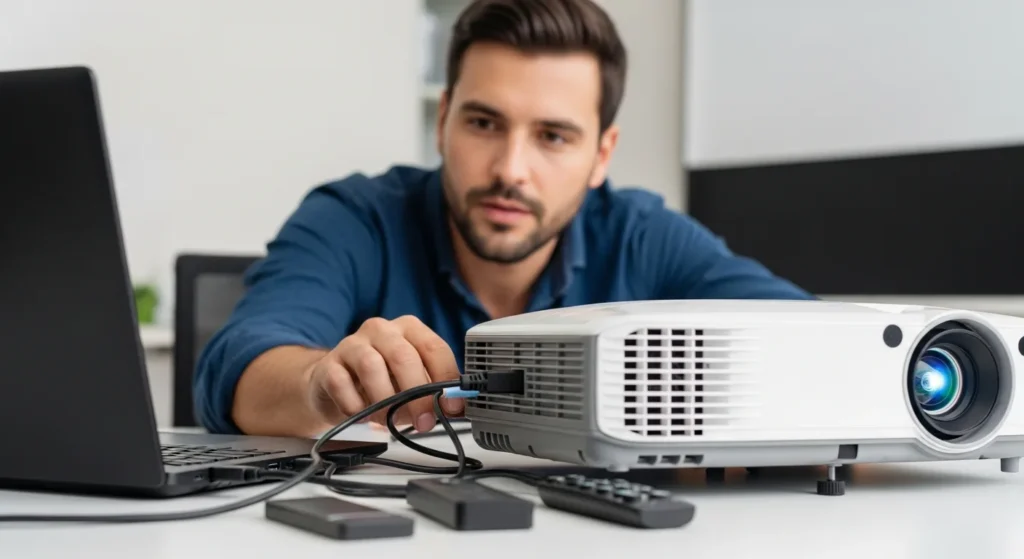
Connecting your laptop to a projector can transform your presentations, movie nights, or gaming sessions into immersive experiences, but it often feels like a tech puzzle waiting to be solved. Whether you’re preparing for a business meeting, setting up a home theater, or delivering a lecture, knowing how to seamlessly link your laptop to a projector is a crucial skill in today’s gadget-driven world. With various connection types, settings, and potential hiccups, this guide cuts through the confusion, offering clear, actionable steps to get you up and running in no time. From HDMI and VGA cables to wireless solutions and troubleshooting common issues, we’ll cover everything you need to master this essential gear setup. By the end, you’ll not only know how to connect but also optimize your display for the best performance, ensuring your gadgets work in harmony.
To connect a laptop to a projector, first identify the ports on both devices (e.g., HDMI, VGA, USB-C). Use a compatible cable to link them, then adjust your laptop’s display settings via the operating system to duplicate or extend the screen. For wireless connections, use built-in features like Miracast or third-party adapters. Always test the setup beforehand to avoid issues during use.
Understanding Projector Connection Types
Before diving into the connection process, it’s essential to familiarize yourself with the various ports and cables available for projectors. Most modern projectors support multiple input options, allowing flexibility depending on your laptop’s capabilities. The type of connection you choose can impact video quality, audio transmission, and ease of setup, so selecting the right one is key to a smooth experience. Here are the most common connection types you’ll encounter in the world of gadgets and gear.
- HDMI (High-Definition Multimedia Interface): The standard for high-quality digital video and audio, widely used in modern laptops and projectors.
- VGA (Video Graphics Array): An older analog connection still found on many projectors and business laptops, but it doesn’t carry audio.
- USB-C/Thunderbolt: A versatile port that can transmit video, audio, and data, often requiring an adapter for projector connections.
- Wireless (e.g., Miracast, Wi-Fi Direct): Allows cable-free connections using built-in technology or dongles, ideal for mobility.
- DisplayPort: Common in high-end laptops and projectors, offering excellent performance for gaming or professional use.
When choosing a connection, consider factors like resolution support and audio needs. For instance, if you’re using a HDMI cable for monitor to laptop, you’ll benefit from both video and audio in one cable, simplifying your setup. On the other hand, VGA might require a separate audio cable, which can add clutter. Always check your laptop and projector manuals to confirm compatibility, as using the wrong cable can lead to poor performance or no signal at all.
Step-by-Step Guide to Connecting Your Laptop
Once you’ve identified the right connection type, follow these steps to establish a link between your laptop and projector. This process varies slightly depending on your operating system and hardware, but the core principles remain the same. Taking a methodical approach ensures you avoid common pitfalls and get your display up quickly. Let’s break it down into manageable stages.
- Gather Your Gear: Collect the necessary cables (e.g., HDMI, VGA), adapters if needed, and ensure both devices are powered off initially to prevent damage.
- Connect the Cable: Plug one end into your laptop’s output port and the other into the projector’s input port. Secure the connections firmly to avoid loose contacts.
- Power On Devices: Turn on the projector first, then your laptop. This order helps the laptop detect the projector automatically.
- Adjust Display Settings: On your laptop, access display settings (e.g., via right-click on desktop or system preferences) and select duplicate or extend screen mode.
- Test the Connection: Play a video or open a presentation to verify both video and audio are working correctly.
If you encounter issues, such as no signal or distorted display, double-check cable connections and try cycling the power. For laptops with multiple ports, ensure you’re using the correct one—some devices have specific video-out ports. Additionally, if you’re dealing with an older projector, you might need to adjust resolution settings on your laptop to match the projector’s native resolution. This step is crucial for avoiding blurry or stretched images, especially in professional settings where clarity matters.
Wireless Connection Methods
For those who prefer a cable-free setup, wireless connections offer convenience and flexibility, though they can come with their own challenges. Modern gadgets often include built-in wireless capabilities, but understanding how to leverage them is key to a successful projection. Wireless methods are ideal for presentations where mobility is important or when dealing with multiple screens. Here’s how to connect wirelessly, along with tips to ensure reliability.
- Use Built-in Wireless Features: Many projectors and laptops support Miracast or Wi-Fi Direct; enable these in your device settings to pair them without cables.
- Employ Wireless Adapters: Devices like Google Chromecast or dedicated projector dongles can stream content from your laptop via Wi-Fi.
- Leverage Network Projection: In business environments, connect both devices to the same network and use software like Windows Project to cast your screen.
- Consider Latency and Quality: Wireless connections may introduce slight delays or reduced resolution compared to wired options, so test beforehand for critical use.
- Ensure Compatibility: Check that your laptop’s operating system and projector model support the same wireless standards to avoid connectivity issues.
When setting up a wireless connection, it’s helpful to have a stable Wi-Fi network to minimize interruptions. For example, if you’re using a Chromecast on a laptop, ensure both devices are on the same network and that your browser supports casting. Wireless solutions can be particularly useful in dynamic environments, but they may require more initial configuration than a simple cable hookup. Always have a backup wired option ready in case of technical glitches, especially for important events.
Troubleshooting Common Issues
Even with careful setup, you might run into problems when connecting your laptop to a projector. Knowing how to troubleshoot these issues can save time and frustration, ensuring your presentation or entertainment goes smoothly. Common problems range from no signal to audio hiccups, and many have simple fixes. Let’s explore some frequent challenges and their solutions, so you’re prepared for any scenario.
| Issue | Possible Cause | Solution |
|---|---|---|
| No Signal on Projector | Loose cable, incorrect input source, or laptop not detecting projector | Re-seat cables, select correct input on projector, restart laptop |
| Blurry or Distorted Image | Mismatched resolution settings or faulty cable | Adjust laptop resolution to match projector, try a different cable |
| No Audio Output | Using VGA cable (no audio), incorrect audio settings, or muted projector | Switch to HDMI, set laptop audio to projector, check volume controls |
| Wireless Connection Drops | Weak Wi-Fi signal or interference from other devices | Move closer to router, reduce network congestion, restart devices |
| Display Not Filling Screen | Aspect ratio mismatch or overscan settings | Adjust aspect ratio on projector, disable overscan in laptop settings |
If problems persist, consult your device manuals or seek online support. For instance, if you’re dealing with a HP sound not working laptop, similar audio issues might arise with projectors, and the troubleshooting steps could overlap. Additionally, keeping your laptop’s drivers and firmware updated can prevent compatibility issues, especially with newer projector models. Remember, patience and systematic testing are your best tools when facing technical hurdles.
Optimizing Your Projection Setup
Once you’ve successfully connected your laptop to the projector, optimizing the setup can enhance your viewing or presentation experience. This involves fine-tuning display settings, managing audio, and considering environmental factors. A well-optimized projection not only looks better but also reduces eye strain and improves engagement. Whether you’re using it for work or play, these tips will help you get the most out of your gadgets and gear.
- Calibrate Display Settings: Adjust brightness, contrast, and color temperature on the projector to suit the room lighting and content type.
- Manage Audio Effectively: If the projector’s speakers are inadequate, connect external speakers or use your laptop’s audio output for better sound quality.
- Control Ambient Light Dim the lights or use curtains to reduce glare and improve image clarity, especially for detailed presentations.
- Position Devices Properly: Place the projector at the correct distance and angle to avoid keystone distortion, and ensure your laptop is within easy reach for adjustments.
- Use Presentation Tools: Leverage software features like presenter mode or remote controls to navigate smoothly without distracting from the content.
For multi-screen setups, such as when you need to connect multiple screens to a laptop, similar optimization principles apply, but you’ll also need to manage screen arrangement and focus. Regularly cleaning projector lenses and updating software can maintain performance over time. By taking these extra steps, you transform a basic connection into a polished, professional setup that impresses audiences and enhances your tech-savvy reputation.
FAQ Section
What cables do I need to connect a laptop to a projector?
You typically need an HDMI cable for modern setups, as it carries both video and audio. For older devices, a VGA cable might be required, along with a separate audio cable if sound is needed. Always check the ports on your laptop and projector to determine compatibility.
Can I connect a laptop to a projector wirelessly?
Yes, many projectors support wireless connections via technologies like Miracast, Wi-Fi Direct, or through adapters such as Chromecast. Ensure both devices are compatible and connected to the same network for a seamless experience.
Why is my projector not detecting my laptop?
This could be due to loose cables, incorrect input source selection on the projector, or outdated drivers on your laptop. Try reconnecting cables, cycling power, and updating your laptop’s display drivers to resolve the issue.
How do I adjust the screen resolution for a projector?
On your laptop, go to display settings and select the projector display. Choose a resolution that matches the projector’s native resolution (often 1920×1080 for HD models) to avoid blurry or stretched images.
Can I use a projector for gaming from my laptop?
Absolutely, but ensure the projector has low input lag and supports the resolution and refresh rate of your games. Use an HDMI connection for best performance, and optimize settings to reduce latency.
What should I do if there’s no audio from the projector?
First, check if you’re using a VGA cable, which doesn’t transmit audio—switch to HDMI if possible. Then, verify that your laptop’s audio output is set to the projector, and ensure the projector’s volume isn’t muted.
Is it possible to connect multiple projectors to one laptop?
Yes, with the right hardware like a splitter or docking station, you can connect multiple projectors. Adjust display settings to duplicate or extend across screens, but be mindful of your laptop’s graphics capabilities.
How can I secure my laptop when connected to a projector in public?
Use physical locks or keep your laptop within sight. For added security, consider tips from our guide on how to secure laptop from theft, such as enabling tracking software or using cable locks.