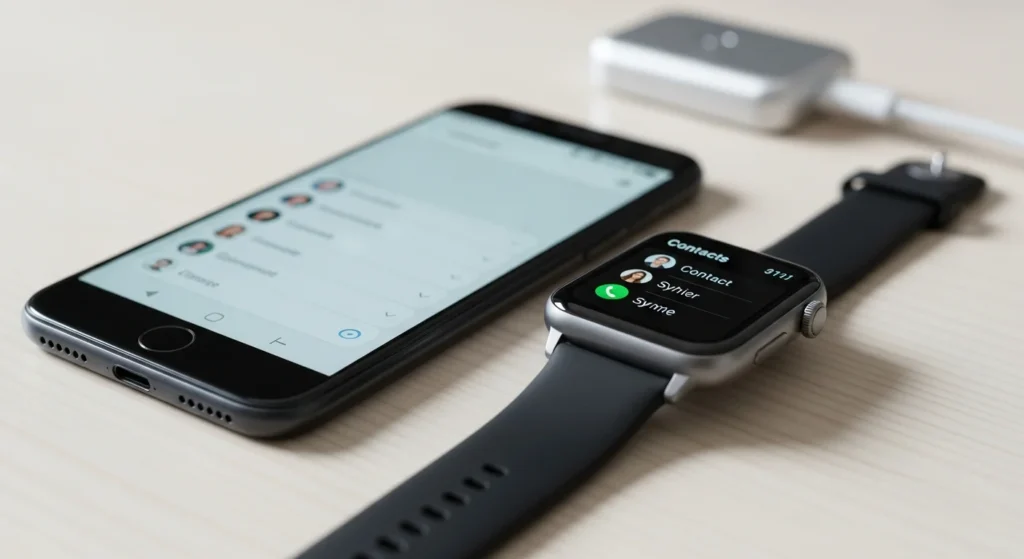
In today’s fast-paced world, staying connected is more important than ever, and your smartwatch serves as a crucial extension of your Android phone. Whether you’re managing business calls or keeping in touch with loved ones, having your contacts readily accessible on your wrist can save time and enhance productivity. This comprehensive guide will walk you through everything you need to know about syncing contacts to your smartwatch from an Android phone, ensuring you get the most out of your gadgets & gear. From basic setup to troubleshooting common problems, we’ve got you covered.
To sync contacts to your smartwatch from an Android phone, first ensure both devices are paired via Bluetooth, then use the companion app (like Wear OS by Google or Samsung Galaxy Wearable) to enable contact sync permissions. Typically, this involves opening the app, navigating to settings, and toggling on ‘Sync Contacts’ or similar options. For specific models, you may need to install additional apps or adjust phone settings.
Why Syncing Contacts to Your Smartwatch Matters
Syncing contacts to your smartwatch isn’t just a convenience—it’s a game-changer for efficiency and accessibility. Imagine being in a meeting or on the go and quickly glancing at your wrist to see who’s calling without fumbling for your phone. This seamless integration reduces distractions and keeps you focused. Additionally, for fitness enthusiasts or professionals, having contacts synced means you can make calls or send messages directly from your watch during workouts or while handling other tasks. It’s a key feature that enhances the utility of your gadgets & gear, making your wearable tech truly smart. If you’re interested in optimizing other aspects of your tech setup, check out our guide on how to connect multiple screens to a laptop for more productivity tips.
Step-by-Step Guide to Sync Contacts
Follow these detailed steps to sync your contacts from your Android phone to your smartwatch. The process may vary slightly depending on your smartwatch brand and model, but these general instructions cover most scenarios.
- Pair Your Devices: Turn on Bluetooth on both your Android phone and smartwatch. Open the Bluetooth settings on your phone, search for your smartwatch, and select it to pair. Ensure they are within close range.
- Install the Companion App: Download and install the appropriate companion app from the Google Play Store. For Wear OS watches, use ‘Wear OS by Google’. For Samsung watches, use ‘Samsung Galaxy Wearable’. Other brands may have their own apps.
- Grant Permissions: Open the companion app and follow the on-screen setup. When prompted, allow permissions for contacts, notifications, and other necessary access. This is crucial for syncing to work.
- Enable Contact Sync: In the app, go to settings or device settings. Look for an option like ‘Sync Contacts’, ‘Contact Sharing’, or ‘Phonebook Sync’. Toggle it on. Some apps may require you to select specific contact groups to sync.
- Verify Sync: Wait a few minutes for the sync to complete. Check your smartwatch’s contacts app to see if your contacts appear. If not, try restarting both devices or re-pairing them.
For those dealing with multiple devices, understanding how to connect multiple monitors to a laptop can also streamline your tech workflow.
Common Smartwatch Brands and Their Sync Methods
Different smartwatch brands have unique approaches to syncing contacts. Here’s a quick comparison to help you navigate based on your gadget.
| Brand | Companion App | Sync Method | Notes |
|---|---|---|---|
| Samsung | Samsung Galaxy Wearable | Auto-sync after pairing, toggle in app settings | Works best with Samsung phones, but compatible with most Android devices |
| Wear OS (Google) | Wear OS by Google | Enable in Wear OS app under ‘Advanced settings’ | Integrates with Google Contacts, requires Google account |
| Fitbit | Fitbit | Sync via Bluetooth, enable in app under ‘Notifications’ | Limited to call notifications, not full contact list |
| Garmin | Garmin Connect | Pair and enable in ‘Phone Settings’ within app | Focus on fitness, contact sync for calls only |
Troubleshooting Common Sync Issues
Even with the best gadgets & gear, you might encounter problems when syncing contacts. Here are some common issues and how to fix them.
- Contacts Not Appearing: Ensure Bluetooth is on and devices are paired. Check app permissions on your phone—go to Settings > Apps > [Companion App] > Permissions, and enable contacts. Restart both devices if needed.
- Sync Taking Too Long: This can happen with large contact lists. Be patient, or try syncing in smaller batches by selecting specific contact groups in the app. Ensure a stable internet connection if cloud sync is involved.
- Incomplete Contact Details: Some smartwatches only sync names and phone numbers, not emails or addresses. Verify your watch’s capabilities in the user manual. Update the companion app to the latest version for better compatibility.
- Pairing Errors: If devices won’t pair, forget the smartwatch in your phone’s Bluetooth settings and re-pair. Make sure your watch is in pairing mode and not connected to another device. For more tech troubleshooting, our article on common 32 gig memory laptop problems offers additional insights.
Best Practices for Managing Contacts on Your Smartwatch
To keep your contacts organized and your smartwatch running smoothly, follow these tips. They’ll help you maximize the potential of your gadgets & gear.
- Regular Updates: Sync contacts regularly, especially after adding new ones on your phone. Set a reminder to check the sync status weekly.
- Use Contact Groups: If your app supports it, sync only essential contact groups (e.g., ‘Family’, ‘Work’) to save space and reduce clutter on your watch.
- Backup Contacts: Always backup your contacts to Google or another cloud service before syncing. This prevents data loss in case of errors.
- Optimize Battery Life: Syncing can drain battery. Adjust sync frequency in the app settings if your watch supports it, or disable sync when not needed.
- Keep Software Updated: Update your smartwatch’s firmware and the companion app regularly to ensure compatibility and access new features.
For those looking to enhance their overall tech experience, exploring the best tech Christmas presents 2026 can provide inspiration for future gadgets.
FAQs: People Also Ask
Can I sync contacts to any smartwatch from an Android phone?
Most modern smartwatches that run Wear OS, Samsung’s Tizen, or similar platforms support contact syncing from Android phones. However, basic fitness trackers may only show call notifications without full contact lists. Check your watch’s specifications or companion app features to confirm.
Why won’t my contacts sync even after following the steps?
This could be due to outdated software, incorrect permissions, or Bluetooth issues. Ensure your phone’s Android version is compatible with the watch, grant all necessary permissions in the app, and try resetting the Bluetooth connection. If problems persist, consult the manufacturer’s support page.
Is it safe to sync contacts to a smartwatch?
Yes, syncing contacts is generally safe as it uses encrypted Bluetooth connections and app permissions. However, only use official companion apps from trusted sources like the Google Play Store to avoid security risks. Avoid public Wi-Fi during initial setup for added safety.
How many contacts can I sync to my smartwatch?
This depends on your smartwatch’s storage capacity. Most models can handle hundreds or thousands of contacts, but syncing a very large list might slow down performance. Refer to your watch’s user manual for specific limits, and consider syncing only frequently used contacts.
Can I edit contacts directly on my smartwatch?
Some advanced smartwatches allow basic contact editing, like adding favorites or changing names, but full editing is usually done on the paired phone. The sync then updates automatically. Check your watch’s contacts app for available options.
Do I need an internet connection to sync contacts?
No, contact syncing typically uses Bluetooth for direct transfer between devices, so an internet connection isn’t required. However, if your contacts are stored in a cloud service like Google Contacts, an internet connection may be needed for initial setup or updates.
Will syncing contacts drain my smartwatch battery quickly?
Syncing itself uses minimal battery, but having contacts accessible might increase usage if you frequently make calls or check details. To conserve battery, adjust sync settings or disable contact sync when not in use, similar to optimizing other laptop sleep settings for efficiency.
Can I sync contacts from multiple Android phones to one smartwatch?
Most smartwatches are designed to pair with one phone at a time for contact syncing. To switch phones, you’ll need to unpair from the current device and re-pair with the new one, which will sync contacts from that phone. Some enterprise-level watches may support multiple connections, but this is rare.