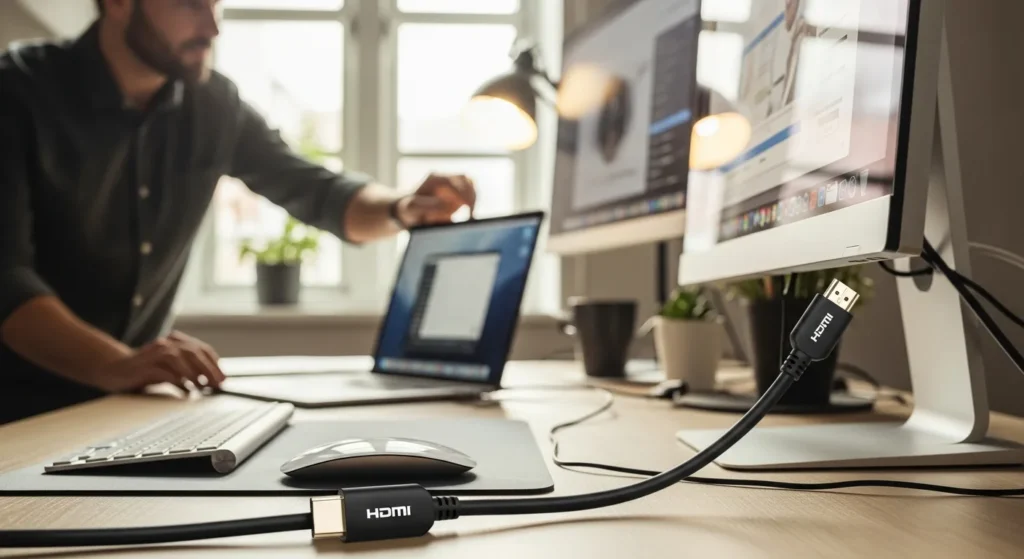
In today’s fast-paced digital world, having the right gadgets & gear can make all the difference in productivity and entertainment. One essential tool that often goes overlooked is the HDMI cable for connecting a monitor to a laptop. Whether you’re a professional needing a dual-screen setup, a gamer seeking immersive visuals, or a student wanting a larger display for projects, understanding how HDMI cables work is crucial. This guide will explore everything you need to know about HDMI cables, from their basic functions to advanced tips for optimizing your setup. With technology evolving rapidly, staying informed about connectivity options ensures you get the most out of your devices. For instance, learning about how to connect multiple monitors to a laptop can further enhance your workspace efficiency.
An HDMI cable for monitor to laptop is a high-definition multimedia interface cable that transmits audio and video signals from your laptop to an external monitor, enabling a larger display, better resolution, and enhanced multitasking for improved productivity and entertainment.
What Is an HDMI Cable and How Does It Work?
HDMI stands for High-Definition Multimedia Interface, a technology developed to transmit uncompressed digital audio and video data between devices. When you connect a monitor to a laptop using an HDMI cable, it creates a direct link that allows your laptop’s screen to be mirrored or extended onto the external monitor. This process involves sending signals through the cable’s pins, which support various resolutions like 1080p, 4K, and even 8K in newer versions. HDMI cables are widely used because they offer a single-cable solution, eliminating the need for separate audio and video connections. They’re compatible with most modern gadgets & gear, including laptops, monitors, TVs, and gaming consoles. Understanding this technology can help you troubleshoot issues, such as those related to network access in your firewall, which might affect streaming quality.
Key Benefits of Using an HDMI Cable for Monitor to Laptop
Using an HDMI cable to connect your monitor to a laptop offers numerous advantages that enhance your overall tech experience. Here are some key benefits:
- Enhanced Productivity: A larger screen allows for better multitasking, such as having multiple windows open simultaneously, which is ideal for work or study.
- Improved Visual Quality: HDMI supports high resolutions, providing crisp and clear images that are perfect for graphic design, video editing, or gaming.
- Simplified Setup: With a single cable, you can connect audio and video, reducing clutter and making installation quick and easy.
- Versatility: HDMI cables work with a wide range of devices, from laptops to monitors and even projectors, making them a versatile addition to your gadgets & gear.
- Cost-Effective: Compared to other connectivity options, HDMI cables are affordable and widely available, offering great value for money.
These benefits make HDMI cables a must-have for anyone looking to upgrade their setup. For more insights on optimizing your tech gear, check out our guide on the benefits of lightweight backpacks for laptops.
Types of HDMI Cables and Their Specifications
Not all HDMI cables are created equal. Different types cater to various needs, so it’s important to choose the right one for your monitor-to-laptop connection. Here’s a breakdown of the main types:
- Standard HDMI Cable: Supports resolutions up to 1080p and is suitable for basic home entertainment systems.
- High-Speed HDMI Cable: Designed for higher resolutions like 4K at 30Hz, ideal for gaming and high-definition content.
- Premium High-Speed HDMI Cable: Certified for 4K at 60Hz and HDR, offering enhanced color and clarity for advanced setups.
- Ultra High-Speed HDMI Cable: Supports 8K and 10K resolutions, perfect for future-proofing your gadgets & gear.
To help you compare, here’s a table summarizing key specifications:
| Type | Max Resolution | Best For |
|---|---|---|
| Standard HDMI | 1080p | Basic monitors, older laptops |
| High-Speed HDMI | 4K at 30Hz | Gaming, streaming |
| Premium High-Speed HDMI | 4K at 60Hz with HDR | Professional work, high-end entertainment |
| Ultra High-Speed HDMI | 8K/10K | Future-proof setups, advanced tech |
Choosing the right cable ensures optimal performance. For related tech tips, explore how using a Chromecast on a laptop can complement your HDMI setup.
How to Connect a Monitor to a Laptop Using an HDMI Cable
Connecting a monitor to your laptop with an HDMI cable is a straightforward process. Follow these steps for a seamless setup:
- Check Ports: Ensure both your laptop and monitor have HDMI ports. Most modern devices include them, but some may require adapters.
- Power Off Devices: Turn off your laptop and monitor to prevent any electrical issues during connection.
- Connect the Cable: Plug one end of the HDMI cable into your laptop’s HDMI port and the other end into the monitor’s HDMI port.
- Power On: Turn on both devices. Your laptop should automatically detect the monitor, but you may need to adjust settings.
- Configure Display Settings: On your laptop, go to Display Settings to choose between mirroring (same screen on both) or extending (additional screen space).
- Test Audio: If your monitor has speakers, ensure audio is routed through the HDMI cable by checking sound settings on your laptop.
This process enhances your gadgets & gear by expanding your visual workspace. For more advanced configurations, learn about connecting 3 monitors to a laptop.
Common Issues and Troubleshooting Tips
Even with a simple setup, you might encounter issues when using an HDMI cable for monitor to laptop. Here are some common problems and how to fix them:
- No Signal: Ensure the cable is securely connected and try a different HDMI port on the monitor. Restarting both devices can also help.
- Poor Resolution: Update your graphics drivers and adjust display settings to match your monitor’s native resolution.
- Audio Not Working: Check sound settings on your laptop to ensure HDMI is selected as the output device.
- Cable Damage: Inspect the cable for bends or breaks. Replace it if necessary, as damaged cables can cause signal loss.
- Compatibility Issues: Older laptops or monitors may not support newer HDMI versions; using an adapter or upgrading your gear might be needed.
Addressing these issues ensures a smooth experience. For insights into other tech challenges, read about touchpad not working in Lenovo laptop solutions.
Future Trends in HDMI and Connectivity
As technology advances, HDMI cables and connectivity options continue to evolve. In 2026 and beyond, we can expect trends like increased support for higher resolutions (e.g., 8K and beyond), enhanced bandwidth for faster data transfer, and integration with wireless technologies. These developments will further streamline gadgets & gear setups, making them more efficient and user-friendly. Staying updated on these trends helps you future-proof your investments. For a glimpse into upcoming tech, explore the best tech Christmas presents for 2026.
FAQs About HDMI Cable for Monitor to Laptop
What is the main purpose of an HDMI cable for monitor to laptop?
The main purpose is to transmit high-definition audio and video signals from your laptop to an external monitor, expanding your display for better productivity, gaming, or entertainment.
Can I use an HDMI cable to connect my laptop to a TV?
Yes, HDMI cables are versatile and can connect laptops to TVs, monitors, projectors, and other display devices, making them a key part of your gadgets & gear.
What’s the difference between HDMI and other cables like VGA or DisplayPort?
HDMI supports both audio and video in a single cable, while VGA is analog and only handles video. DisplayPort offers similar features but is often used for higher refresh rates in gaming.
Do I need a special HDMI cable for 4K resolution?
Yes, for 4K resolution, you should use a High-Speed or Premium High-Speed HDMI cable to ensure optimal performance and avoid signal issues.
How long can an HDMI cable be without losing quality?
Standard HDMI cables can be up to 50 feet long without significant quality loss, but for longer distances, active or fiber-optic cables are recommended to maintain signal integrity.
Can I connect multiple monitors to my laptop using HDMI?
Yes, by using HDMI splitters or docking stations, you can connect multiple monitors. However, your laptop’s graphics card must support multiple displays for best results.
Is HDMI better than wireless screen mirroring?
HDMI generally offers more stable and higher-quality connections compared to wireless options, which can suffer from latency or interference, making it ideal for critical tasks.
What should I do if my HDMI connection is flickering?
Check for loose connections, update graphics drivers, or try a different cable. Flickering can also be caused by incompatible resolutions or hardware issues.